
Using OpenAI TTS in Home Assistant

As an Apple fanboy I've got a few HomePod minis scattered around my house to play music and interact with Siri. This works well until I want to get voice notifications from Home Assistant. The obvious choice here is Google Translate, but you get what you pay for and oh-boy is that voice quality bad. So what is a stingy tech enthusiast to do?
Introducing OpenAI TTS
OpenAI provides a great text to speech service through their API service, and creating an account with $5 in credit is more than sufficient to get you through a year of usage. At time of writing there are six voices to choose from with the option to selecting the quality.
But how do we get this into Home Assistant?
Thankfully sfortis over on GitHub has us covered with a fantastic custom integration openai_tts. Let's set it up.
OpenAI TTS Custom Component for Home Assistant
As described in the repo, follow the steps to install the custom component via HACS.
- Go to the sidebar HACS menu
- Click on the 3-dot overflow menu in the upper right and select the "Custom Repositories" item.
- Copy/paste https://github.com/sfortis/openai_tts into the "Repository" textbox and select "Integration" for the category entry.
- Click on "Add" to add the custom repository.
- You can then click on the "OpenAI TTS Speech Services" repository entry and download it. Restart Home Assistant to apply the component.
- Add the integration via UI, provide API key and select required model and voice. Multiple instances may be configured.
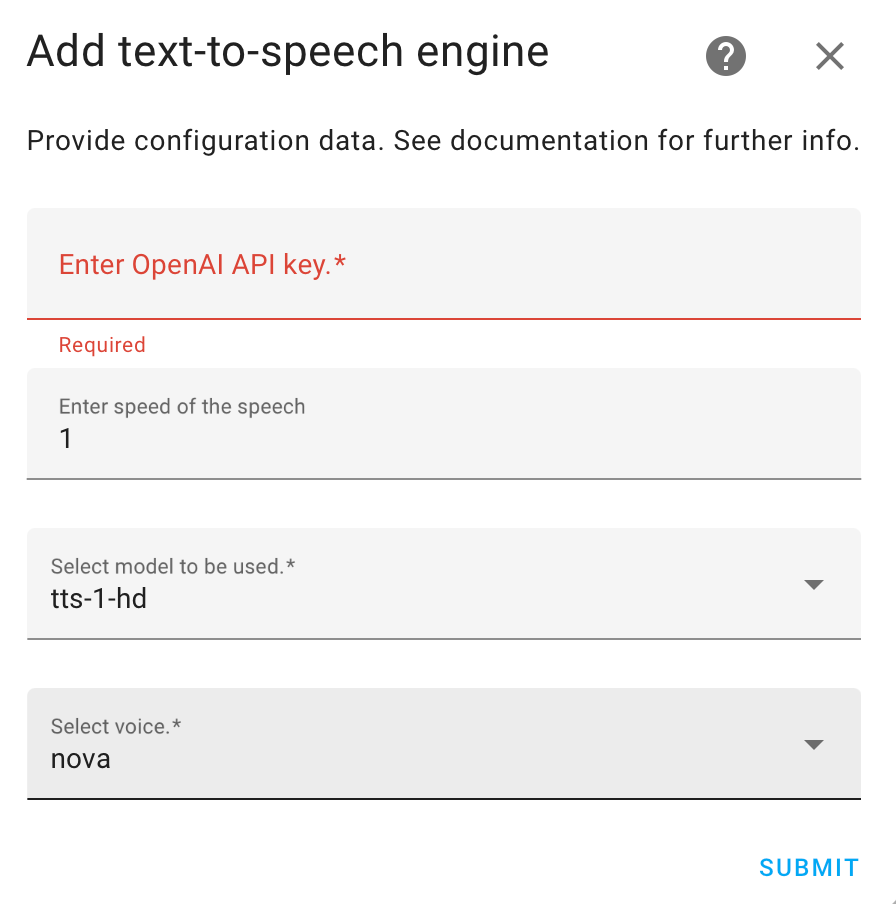
Using OpenAI TTS in Automations
Your specific use case will vary here, but for me I needed a way to convey what action had been performed on the press of a wireless switch. There aren't any Hue lights nearby and push notifications only for me. Luckily there is a HomePod mini nearby which, with a slight volume increase, is within earshot.
- Add an Action to your automation and select Text-to-speak (TSS): Speak
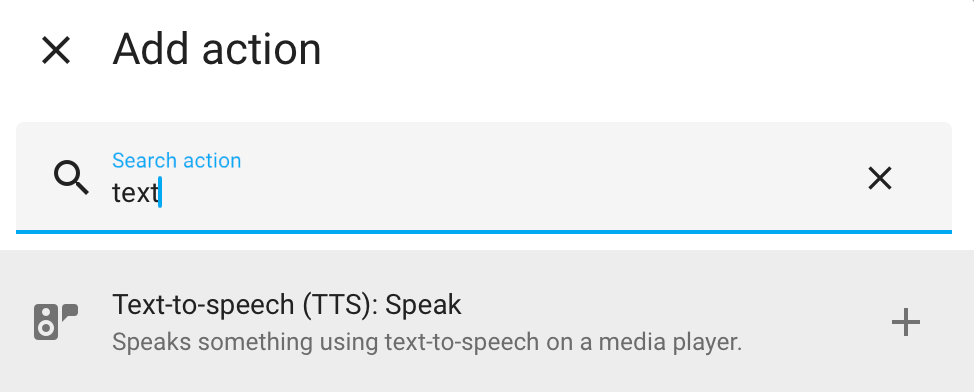
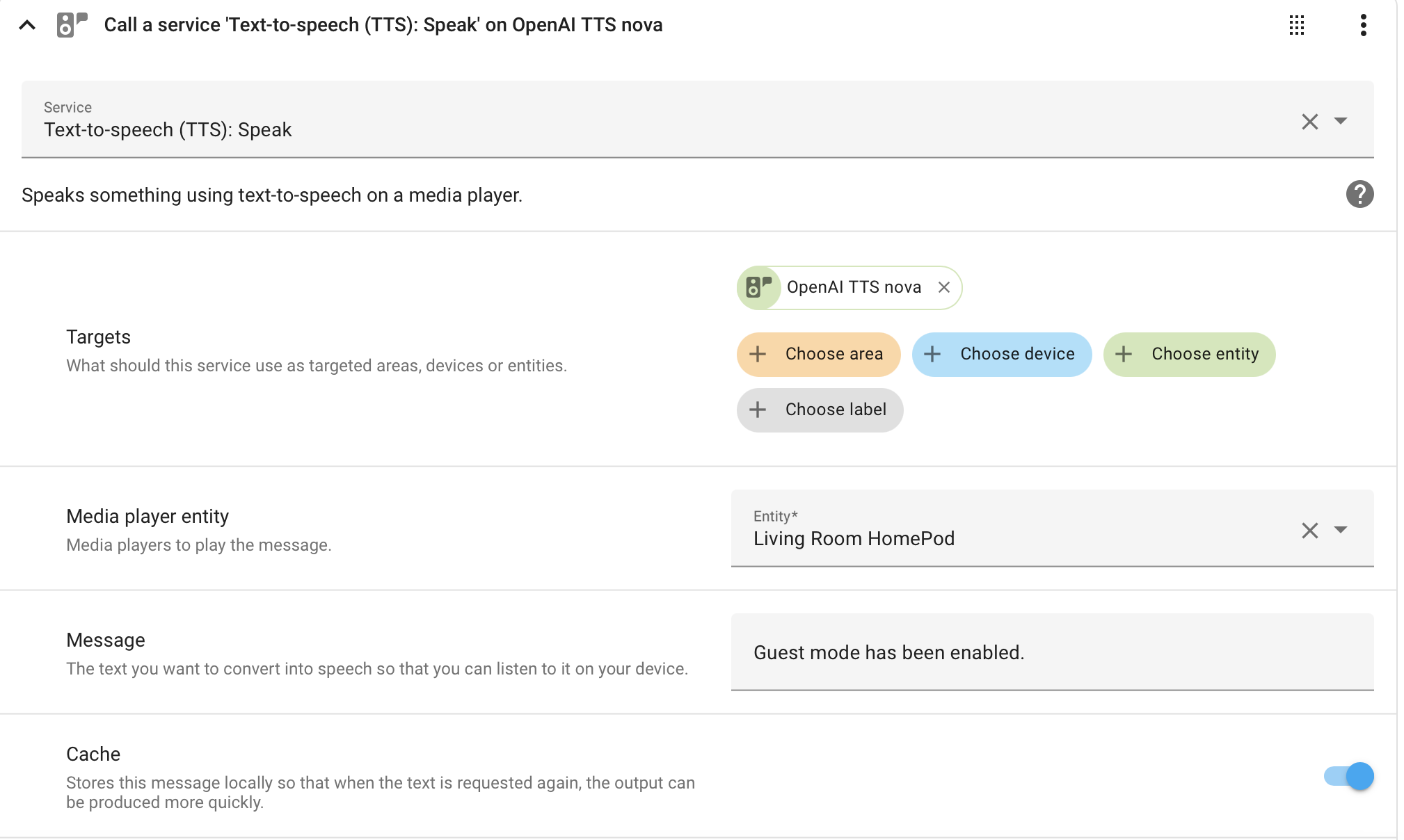
- Configure the action:
- Targets: select your OpenAI TTS service
- Media player: select your nearby speaker entity
- Message: Pop in text
- Cache: Toggle On (so it's faster next time)
Done.